
IT in a glance
Your first useful IT inventory
Start locally without an account. Connect a server, a service and a domain, then find the information you need.
Choose how to start
Download the current free desktop release. Open Guide to add your first server or import a table. To explore fictional data, open Settings and choose Open demo. Your real records stay separate.
Download a fictional CSV example or follow the import guide. Use the template in the application's import dialog for its exact field requirements.
Build one useful connection
- Add a server with its name, address and purpose.
- Open Services. Review the proposed SSH service on port 22; confirm it only if it matches your server. Add other services separately with their actual ports.
- Add a domain, select its hosting server and record any known expiry date.
- Open Connections, select the resource and follow its host and services. Hide unrelated nodes from the diagram and restore them when needed.
These are records you maintain, not an automatically discovered or live-verified architecture.
Protect your work
In the current release, Settings > Create backup saves a full local database backup. Keep a separate secure copy. A table export or legacy project JSON is not a full backup of services, domains and relationships.
Full backups contain sensitive data and are not encrypted containers. Windows-protected service credentials may need to be re-entered under another user or device. Keep passwords and private keys out of notes.
Current desktop: overview and reminders
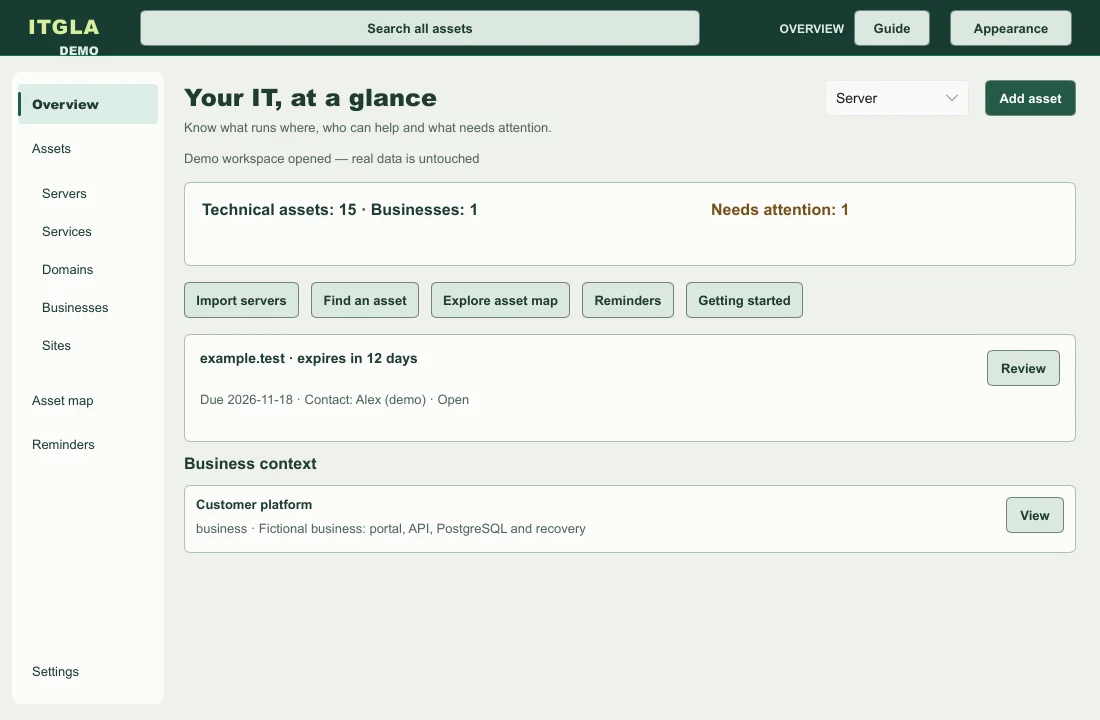
The current 0.6.4 desktop release includes: a direct Try sample data button, an Overview with a short guide, global search, shared asset details, manual reminders, a restore confirmation and a metadata handover export.
- Use Overview > Find an asset or Ctrl/Cmd+K. Search a name, IP, purpose or contact; open a result and follow its connected assets.
- Record a domain expiry or add a dated Work item. Reminders update while ITGLA is open. Closing the program stops these checks; there are no closed-app notifications or automatic certificate checks.
- Use Settings > Save full backup to choose a destination. To recover, choose Restore backup, review the replacement warning, then Restore and close. Reopen ITGLA. The source must use the same database schema; a pre-restore recovery copy is kept locally.
- Use Export handover for a readable metadata summary. Credential fields, custom columns, documentation links and notes are excluded. Names, addresses and contacts can still be sensitive. Review the file before sharing. Choose a new filename; existing files are never overwritten.
Sample data stays isolated from your real workspace. Never restore a test backup over your only working copy.
What stopped you?
Tell us what you were trying to find, where you got stuck and whether you would use ITGLA again. Share feedback without credentials or private infrastructure details.